You can't fix what you can't see, and on a site with hundreds of pages, nobody can see everything. A crawl reads every page in your sitemap and tells you what's wrong across the whole site at once.
We crawled ieltsbandlift.com in lesson 1.4. This lesson reads the results properly.
Step 1: Crawl
On My Site, click Crawl sitemap (full site). SEODojo finds your sitemap (including through robots.txt and nested sitemap files), then reads every page: title, word count, headings, status and links. Larger sites are crawled in batches, and you can close the page while it runs. A crawl is kept for 48 hours, and crawling again within that time reuses it.
Ours: 306 pages.
Step 2: Site health
Site health checks each page's status and redirects, and titles or descriptions duplicated across pages. Ours: 0 issues. No broken pages, no redirect chains.
That's worth knowing, and it's also where many crawl tools stop. A clean health check doesn't mean the site is in good shape. The next three findings were all on pages with no technical errors at all.
Step 3: Orphan pages
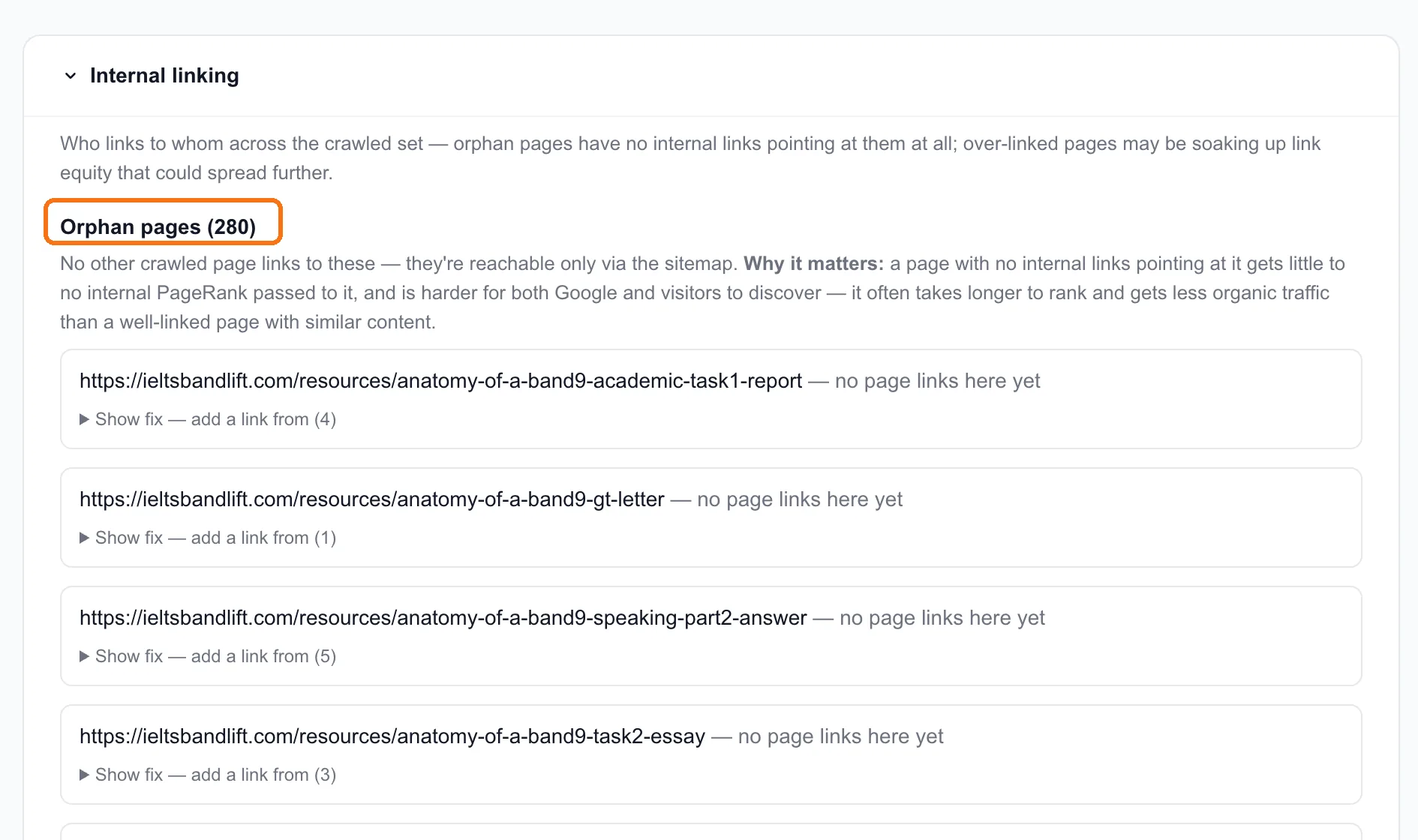
280 of our 306 pages are orphans: no other page on the site links to them. Google can find them through the sitemap, but internal links are how a site tells Google which pages matter. A page nobody links to gets almost none of that signal, and visitors can't find it either.
Each orphan has Show fix, which suggests which pages should link to it, for example "add a link from (5)".
How we'd fix 280 without spending a month on it:
- Start with the pages that matter most. The Band 9 "anatomy" pages and the format guides are the ones we'd want ranking. Fix those first.
- Link from hub pages. One "Speaking resources" page that links to every speaking guide fixes dozens of orphans at once. So does a related-articles block at the end of each guide.
- Link new articles to old ones. Every article SEODojo writes links to existing pages (lesson 3.2), so each one fixes a few orphans as it goes.
Step 4: Thin pages, headings and speed
The Sitemap crawl table shows every page's word count, heading count and speed.
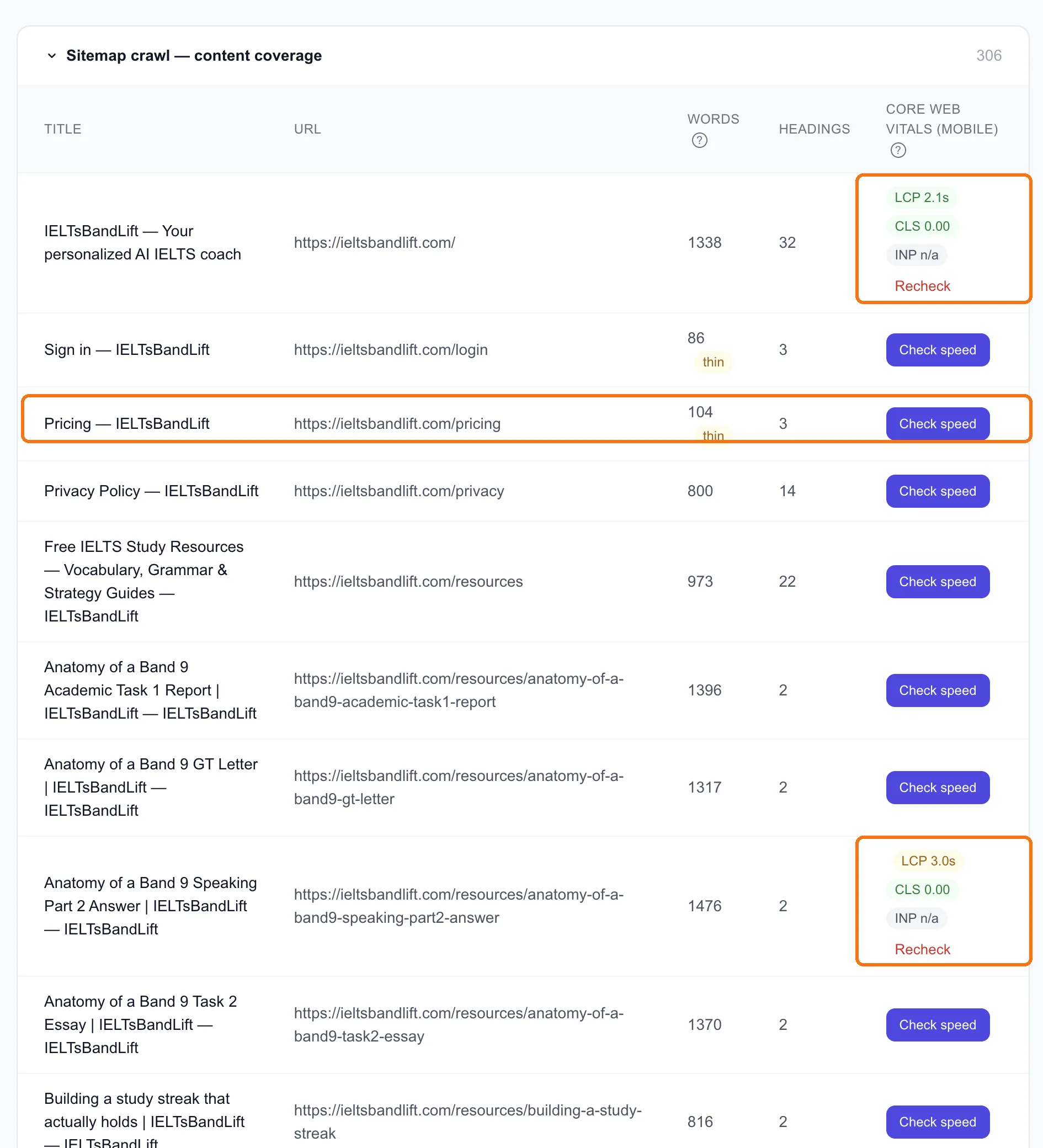
Thin pages are flagged by word count. Ours: the sign-in page (86 words) and the pricing page (104 words). Sign-in doesn't matter. Pricing does: it's where AI engines and buyers look for your prices, and lesson 7.3 shows what to add to it.
Headings. Look down the headings column. Our articles are 1,300 to 1,600 words long with 2 headings each. A long page with almost no headings is hard to scan, and harder for Google and AI engines to split into answers. This isn't flagged anywhere, so you have to notice it. For us, it's one template change that fixes every guide at once.
Speed. Click Check speed on a page for its mobile Core Web Vitals:
| Page | LCP | CLS | INP |
|---|---|---|---|
| Homepage | 2.1s | 0.00 | n/a |
| Speaking Part 2 guide | 3.0s | 0.00 | n/a |
- LCP (Largest Contentful Paint) is how long the main content takes to appear. Under 2.5s is good. Our homepage passes. The Speaking guide, at 3.0s, needs improvement.
- CLS (Cumulative Layout Shift) is how much the page jumps while loading. 0.00 is perfect.
- INP (Interaction to Next Paint) is how quickly the page responds when you tap. "n/a" means there isn't enough real visitor data to measure it, which is normal on a low-traffic site.
Speed is rarely why a page doesn't rank, but a slow mobile page loses readers. Check your most important pages, not all 306.
What we're fixing first
From one crawl, in order: headings in the guide template (fixes every guide), hub pages for orphans (fixes hundreds), the pricing page (lesson 7.3), then the Speaking guide's load time.
Done when
- Your full site is crawled and site health is checked
- You know how many orphan pages you have, and you've picked the hub pages that will fix most of them
- Thin pages that matter (pricing, product, key guides) are on your list
- You've looked at heading counts on your long pages
- You've checked speed on your three most important pages