AI visibility moves slowly. If you open the dashboard every day, you'll mostly see the same thing, and you'll be tempted to react to noise. The better habit: let SEODojo watch, and only look when there's something to see.
There are three ways to do that, and none of them takes more than a click.
The weekly digest
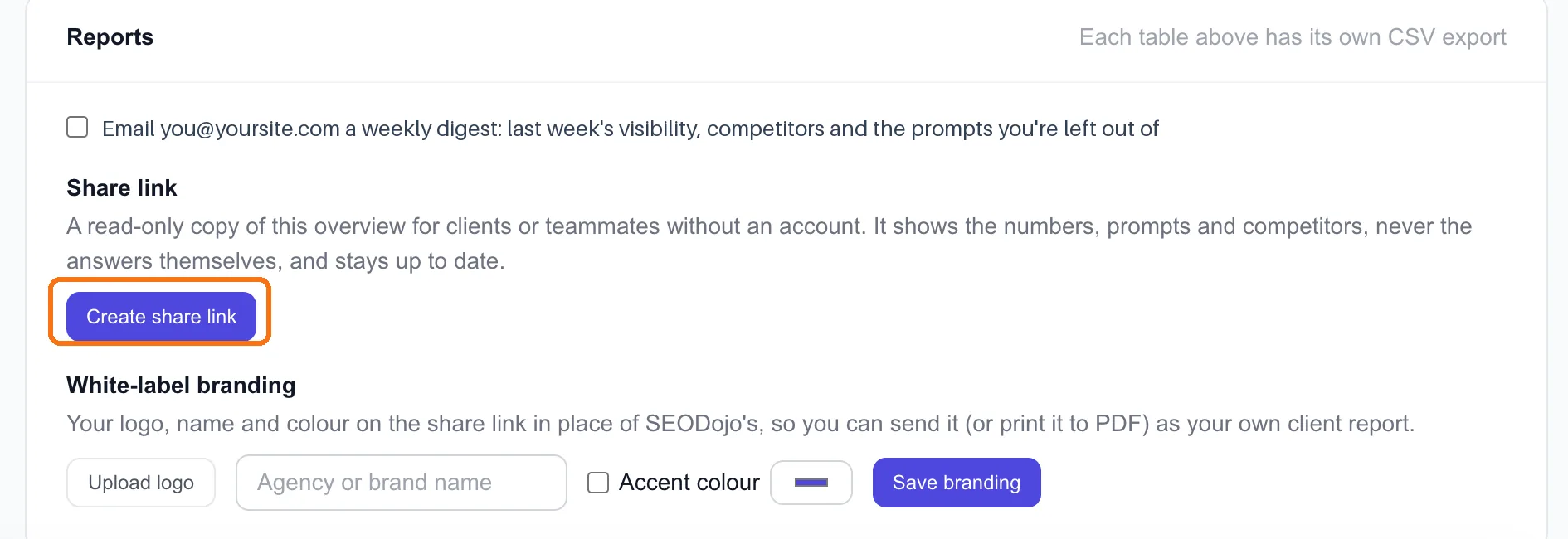
Open Overview under AI Visibility and scroll to Reports. Tick Email … a weekly digest.
Every Monday morning you get one email with last week's visibility against the week before, each engine, how your competitors did, and the prompts the latest answers leave you out of (up to five). A week with no checks sends nothing.
It's set per site. If you track several sites, tick it on each one you want.
The last part, the prompts you're left out of, is the one to read closely. It's next week's to-do list from lesson 7.5, delivered.
Alerts when something changes
The digest is a summary. Alerts are for the moments that matter. On AEO Check, above your tracked prompts, tick Email … when an engine starts or stops naming my brand, or visibility drops sharply over a week.
You'll get an email in two situations:
- An engine flips. A tracked prompt that ChatGPT (or any engine) didn't name you in now does, or the other way round. For ieltsbandlift.com, this is the email we're waiting for: the first "yes" after lesson 7.5's article goes live.
- Visibility drops sharply. Last week against the week before, down by 15 percentage points or more. It only counts once both weeks have at least 8 answers, so one or two odd answers can't set it off, and you get at most one of these a week.
A failed run (an engine that timed out, say) never counts as a flip. You won't get "Perplexity stopped naming you" because Perplexity didn't answer.
A share link for people without an account
Under Share link, click Create share link. You get a read-only copy of the Overview that anyone with the link can open, no sign-in needed. It stays up to date as new checks come in.
It shows the numbers, prompts and competitors, but never the answers themselves. You can send it to a manager or a co-founder without exposing anything you'd rather not.
Only the workspace owner can create or revoke it, so a teammate can't share it by accident.
White-label branding (Scale) puts your logo, name and colour on that link in place of SEODojo's. Agencies use it as the client report, sent as a link or printed to PDF. Lesson 8.3 covers that in detail.
And when you need the raw data
Every table on the Overview has its own Export CSV. Use it when you need the raw data in a spreadsheet or another report, not as a weekly habit.
Done when
- The weekly digest is on for every site you track
- Alerts are on, so you hear about the first "yes" the day it happens
- You've created a share link and sent it to the one person who should see these numbers
- You've stopped opening the dashboard every day